Sheet
Use Sheet for a temporary modal task, a form, or a scrollable selector. Your screen owns visible and responds to onDismissRequest. Sheet coordinates layout, the scrim, insets, animations, and the platform host. The API is in com.moriafly.salt.ui.sheet and requires @OptIn(UnstableSaltUiApi::class).
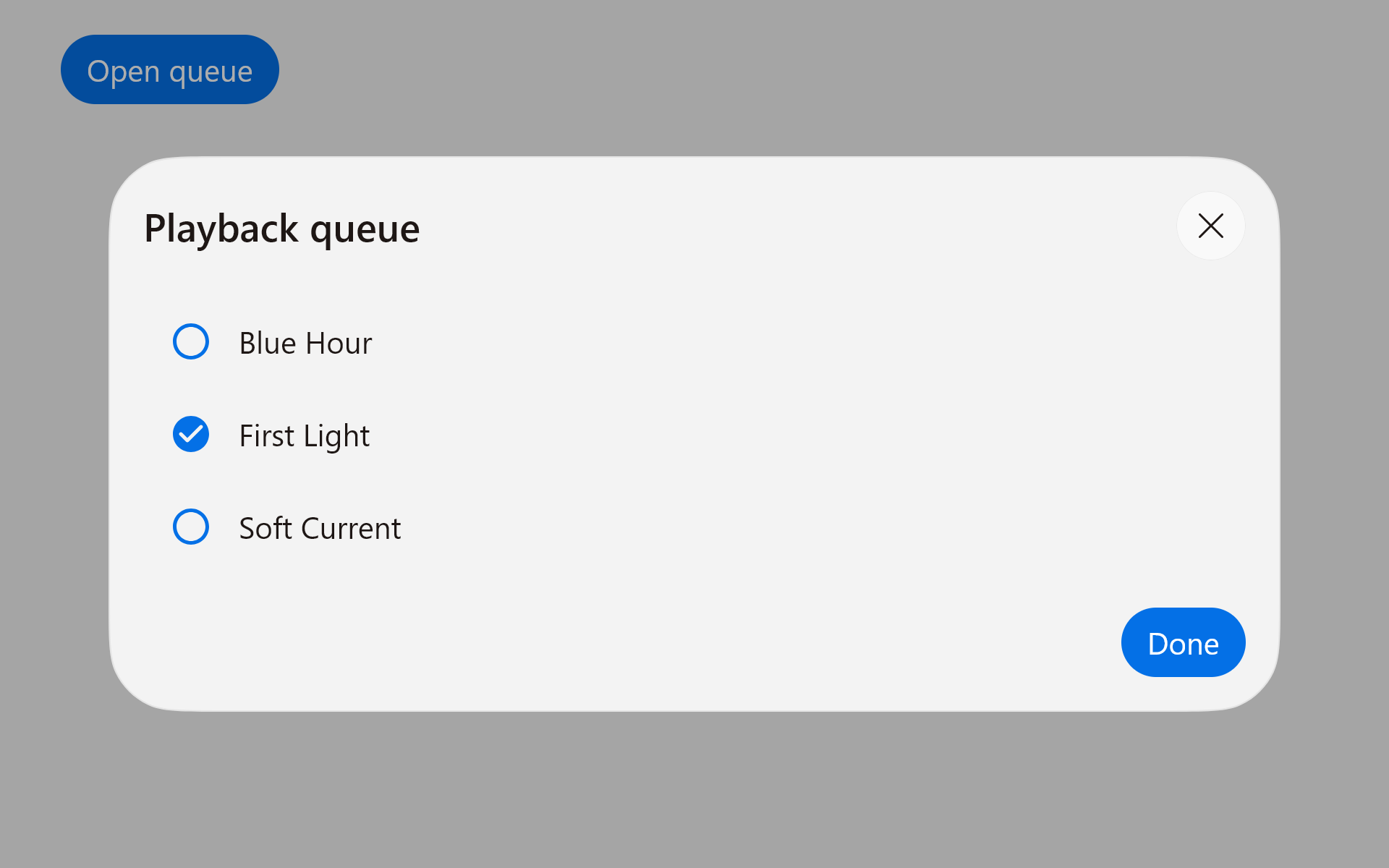
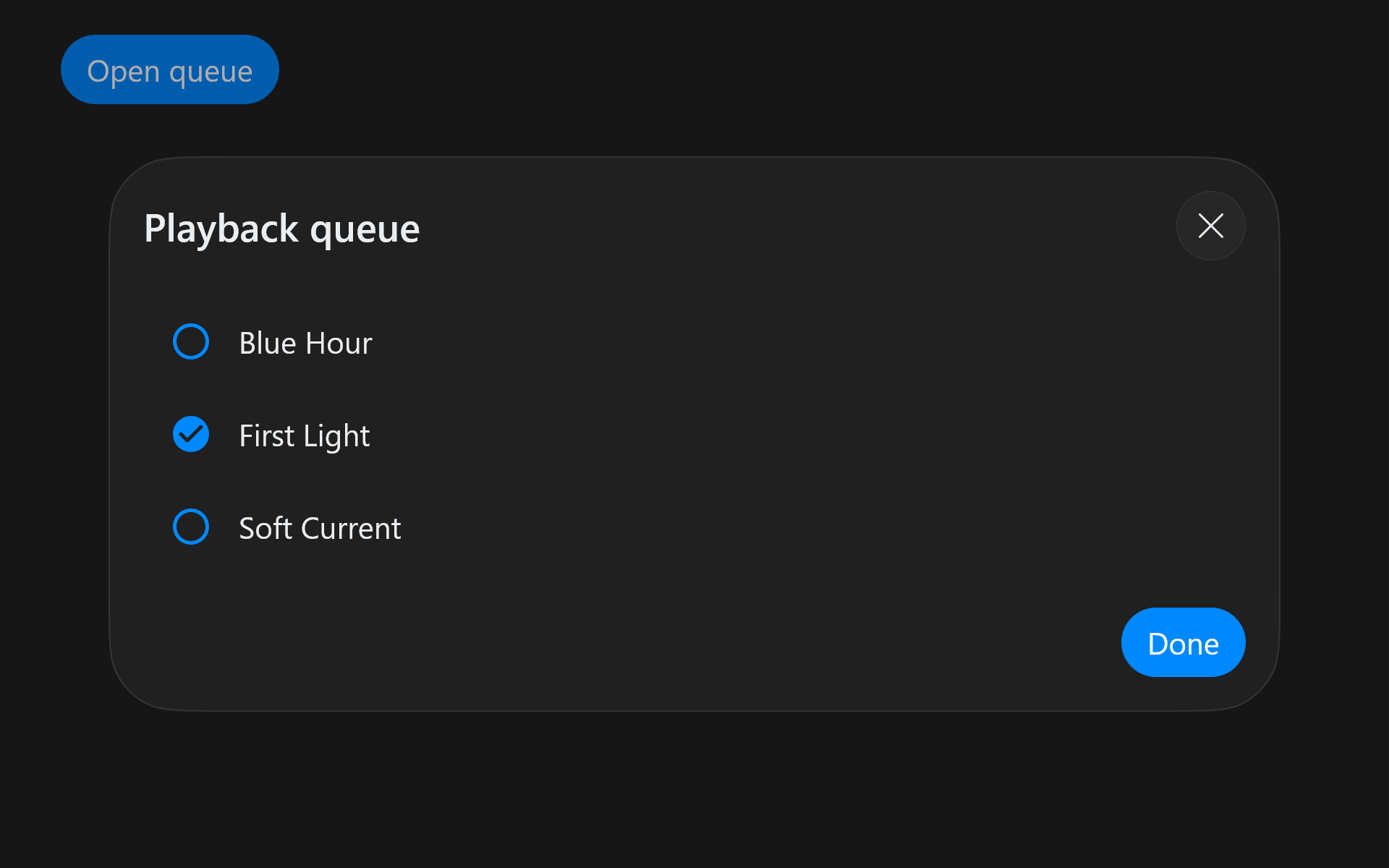
Show a sheet
@OptIn(UnstableSaltUiApi::class)
@Composable
fun Example() {
    var visible by rememberSaveable { mutableStateOf(false) }

    Button(onClick = { visible = true }, text = "Open")

    Sheet(
        visible = visible,
        onDismissRequest = { visible = false },
        title = "Choose content"
    ) {
        Text("Sheet content")
    }
}
Leave the Sheet call in composition and set visible = false to close it. A normal dismissal releases background input immediately and keeps drawing until the exit animation finishes where supported. Removing the call from composition cleans up the host immediately.
Switch between two sheets by hiding one and showing the other in a single state update. Their animations can overlap after the incoming panel is measured, while the window coordinates the scrim and input. Only one sheet per owner window should have visible = true.
Menus opened in the content or actions can sample the sheet backdrop.
Control dismissal
SheetProperties option | Behavior when false |
|---|---|
dismissOnClickOutside | The scrim consumes outside clicks without requesting dismissal. |
dismissOnBackPress | Back or Escape does not dismiss the sheet. Android Back can still hide the keyboard. |
dismissOnDrag | Dragging below the lowest detent does not dismiss a bottom sheet. Resizing remains available with more than one valid detent and dragEnabled. |
dismissOnCloseButtonClick | Removes the title bar’s close button and its accessibility action. |
All four options default to true. The callback requests dismissal. Leave visible true to keep the sheet open. A drag then returns to a valid detent. Setting visible = false directly bypasses the request callback.
Sheet(
    visible = visible,
    onDismissRequest = { visible = false },
    title = "Fill in details",
    properties = SheetProperties(dismissOnClickOutside = false)
) {
    Text("Form content")
}
The dismissible constructor and copy overloads set all four options together and leave dragEnabled independent.
val properties = SheetProperties(dismissible = false)
val enabledProperties = properties.copy(dismissible = true)
Use the individual copy parameters after applying a common value if an entry point needs an exception.
val properties = SheetProperties(dismissible = !uploading)
    .copy(dismissOnClickOutside = false)
Choose either the bulk or individual overload in a single call. Ordinary copy() preserves individual values. The host can still hide the sheet programmatically, remove its screen, or handle its own Cancel or Done action.
Wait for exit
Pass a SheetState when navigation needs to keep its entry until the exit animation and host removal complete.
val sheetState = rememberSheetState()
val scope = rememberCoroutineScope()

Sheet(
    visible = visible,
    onDismissRequest = {
        scope.launch {
            visible = false
            sheetState.awaitHidden()
            onRemove()
        }
    },
    state = sheetState,
    title = "Choose content"
) {
    Text("Sheet content")
}
visible remains the visibility input. isHidden is initially true, becomes false once presentation is applied, and returns to true after the host leaves composition. awaitHidden() observes the current presentation. It returns immediately if hidden and keeps waiting if the sheet reopens during exit. It does not request dismissal.
Several coroutines can wait independently. If the Sheet call is removed early or switches to another state, pending waiters receive CancellationException. Waiting does not guarantee that unrelated effects or business operations have finished.
For Navigation 3, a Scene can own SheetState(). In OverlayScene.onRemove(), update the state that drives visibility and then call sheetState.awaitHidden(). If removal is canceled, restore the removal state and propagate cancellation. Use a state on the UI thread for one sheet at a time. Keep it out of persisted or saved business state.
Retain state while hidden
After a full dismissal, the default clears rememberSaveable values in content and resets the detent to initialDetent. Reopening while the exit animation is in progress retains the current content state.
Set retainStateWhenHidden = true while temporarily hiding a parent sheet to keep saveable state and the chosen detent. Content still leaves composition. Plain remember and composition effects end, so keep ongoing work in the caller. Use your own flow state to track the parent and child, and turn retention off when the flow ends.
var flowVisible by rememberSaveable { mutableStateOf(false) }
var showingDetails by rememberSaveable { mutableStateOf(false) }

Sheet(
    visible = flowVisible && !showingDetails,
    onDismissRequest = { flowVisible = false },
    properties = SheetProperties(retainStateWhenHidden = flowVisible)
) {
    // State owned by this content survives a return from Details.
    var note by rememberSaveable { mutableStateOf("") }
    ItemEdit(text = note, onChange = { note = it }, hint = "Note")
    Button(onClick = { showingDetails = true }, text = "Details")
}
Sheet(
    visible = flowVisible && showingDetails,
    onDismissRequest = { showingDetails = false },
    actions = {
        Button(
            onClick = {
                showingDetails = false
                flowVisible = false
            },
            text = "Done"
        )
    }
) {
    Text(text = "Details")
}
Reset the selected child when reopening the flow. The caller still owns any hoisted state.
Scroll at multiple heights
The layout puts the title, content, and actions in order. The sheet supplies a bounded viewport for the body. It adds 16 dp around the action area and 8 dp of bottom spacing when there are no actions. The title and actions usually stay visible, but can scroll in very small windows.
Sheet(
    visible = visible,
    onDismissRequest = { visible = false },
    title = "Play queue",
    properties = SheetProperties(
        detents = listOf(SheetDetent.Medium, SheetDetent.Large),
        initialDetent = SheetDetent.Medium
    ),
    actions = {
        Button(onClick = { visible = false }, text = "Done")
    }
) {
    LazyColumn(Modifier.fillMaxSize()) {
        items(100) { index -> Text("Track ${index + 1}") }
    }
}
With SheetContentLayout.Inset, Sheet applies safe areas by default. With EdgeToEdge and no actions, use SheetScope.contentPadding to place the bottom navigation inset and spacing inside the scrollable content. The keyboard remains outside the viewport. Put the padding after verticalScroll for a regular column, or pass it to the lazy list directly.
Sheet(
    visible = visible,
    onDismissRequest = { visible = false },
    properties = SheetProperties(contentLayout = SheetContentLayout.EdgeToEdge)
) {
    Column(
        modifier = Modifier
            .verticalScroll(state = rememberScrollState())
            .padding(paddingValues = contentPadding)
    ) {
        // Business content.
    }
}Sheet(
visible = visible,
onDismissRequest = { visible = false },
properties = SheetProperties(contentLayout = SheetContentLayout.EdgeToEdge)
) {
LazyColumn(
modifier = Modifier
.fillMaxSize(),
contentPadding = contentPadding
) {
items(count = 100) { index ->
Text(text = "Item $index")
}
}
}| Option | Behavior |
|---|---|
Content | Natural content height. This is the default. |
Medium, Large | Half of the available height, or the maximum available height. Medium can collapse when space is limited. |
Height(320.dp), Fraction(0.75f) | A fixed height or a fraction in (0, 1], constrained by the available space. |
SheetDisplayMode.Auto | Floating when the owner window is at least 600 × 480 dp, otherwise Bottom. |
SheetScrollBehavior.ExpandFirst, ScrollFirst | Expand the panel before scrolling upward, or scroll the content first. Both scroll to the top before collapsing downward. |
dragEnabled = false | Removes pointer drag and the handle while preserving valid accessibility height actions. |
SheetProperties(
    displayMode = SheetDisplayMode.Auto,
    dismissOnClickOutside = true,
    dismissOnBackPress = true,
    dismissOnDrag = true,
    dismissOnCloseButtonClick = true,
    scrollBehavior = SheetScrollBehavior.ExpandFirst
)
Equal detents are merged. Bottom shows a handle when dragging is enabled and there is another detent or dragging can request dismissal. Tapping the handle cycles the height only when another detent is available. Floating uses the current detent as a maximum and has no drag handle.
Both modes cap the width at 540 dp. The floating height cap is the smallest of the safe drawing height, 1.2 times the panel width, and 640 dp. Floating uses symmetric safe margins of at least 16 dp and handles the keyboard separately. A bottom sheet extends its background to the physical window edge and centers the panel horizontally.
Confirm before discarding a draft
Check for unsaved work in onDismissRequest. Keep the sheet visible and present a confirmation dialog from its content. Resume editing by closing the dialog. Confirm discard by setting visible = false.
Try the sample
Run ./gradlew :desktopApp:run or gradlew.bat :desktopApp:run on Windows, then open Sheet. The same sample is used by the Android and iOS entry points. Try Bottom with Medium / Large for dragging, or Floating for a centered task. Return to a parent sheet shows how saved input and detent survive opening a child sheet.
Compatibility
BottomSheetScaffold and BottomSheetDialog retain their existing APIs. The legacy dismissible constructor and copy entry points treat dismissal as one combined value. Old binaries can turn all four entries off when copying a mixed configuration. Recompile with the individual flags to preserve mixed values.
Platform behavior
Each owner window uses its own adaptive window information. Insets, density, and font-scale changes update the layout. Closing content leaves the accessibility tree during exit.
Desktop's default same-canvas backend can continue drawing the exit while releasing input. With Compose's COMPONENT or WINDOW layers, closing removes the native popup immediately to release input. iOS retains exit drawing while releasing interaction and removing semantics.